
How to turn a PDF, a Google Sheet, photos, or your own notes into audio flashcards
Put your material into VoiceCards as question-and-answer cards, then play the deck in Listen mode. Each card plays the question, pauses so you can answer, then plays the answer. A PDF or photos go through AI card generation, a Google Sheet comes in from its link, and your own writing can be typed in or imported as a two-column file.
How do I turn a PDF into audio flashcards?
Attach the PDF in Generate Cards with AI. One file up to 40 MB fits. The AI writes question-and-answer cards from it, you check them, and Listen mode reads them aloud.
When the PDF already has pairs, such as term and definition rows, the generator is set up to keep each pair as a card. Check the result once before you listen.
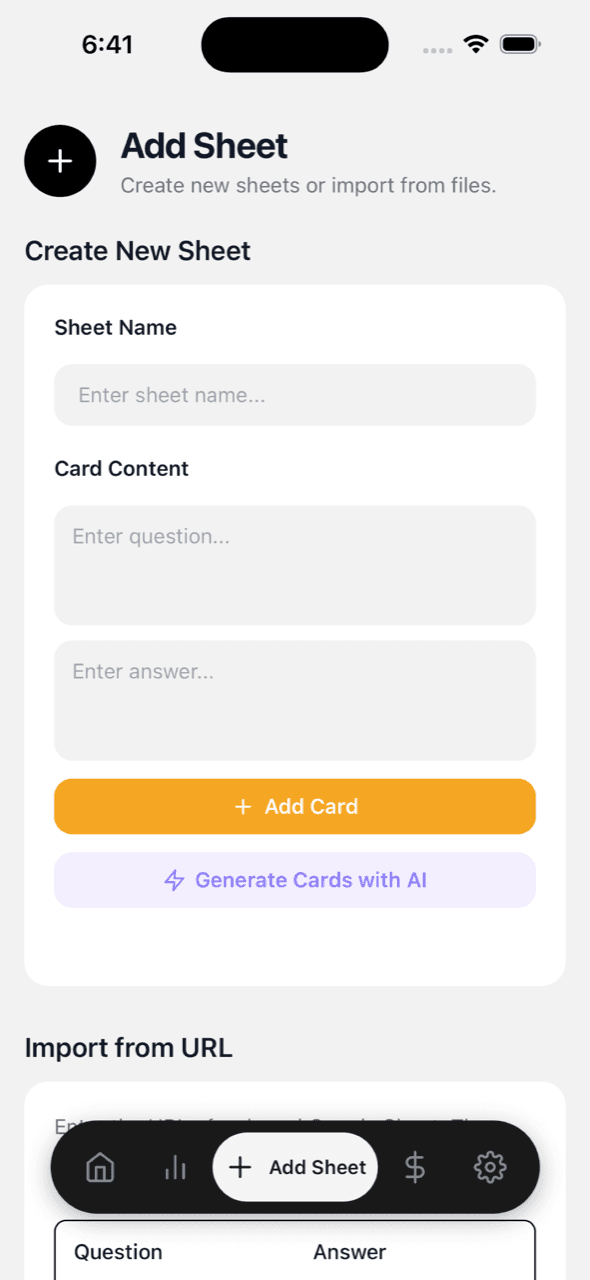
- Start an AI deck. In VoiceCards, open Add Deck and tap Generate Cards with AI. Generating cards needs a signed-in account.
- Attach the PDF. Attach one PDF up to 40 MB, such as lecture notes, a manual chapter, or a vocabulary list.
- Choose how many cards. Pick the number of cards to generate. Credits are charged by the number of cards.
- Edit the cards. Delete cards you do not need, split any card that asks two things, and reword questions in your own words.
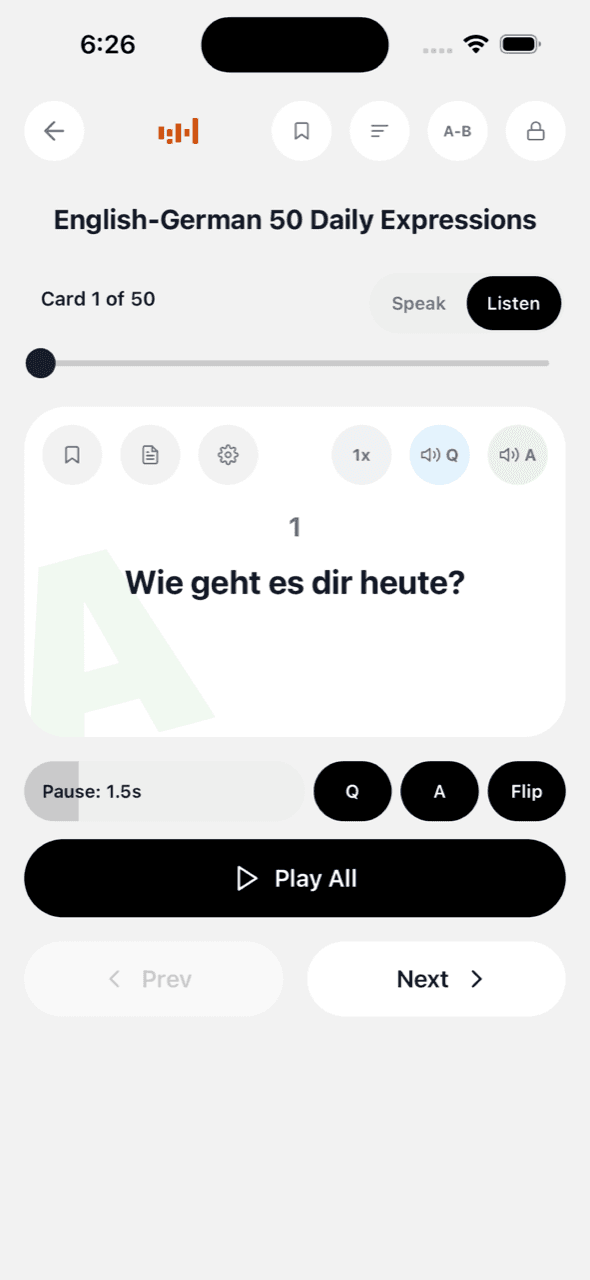
- Play the deck in Listen mode. Press Play All and set a pause long enough to say the answer before it plays.
How do I make flashcards from a Google Sheet and listen to them?
Put the question in the first column and the answer in the second, one card per row. Set the sheet to "Anyone with the link can view", then import it in VoiceCards from its URL. Listen mode reads every card aloud, question first, then answer.
An optional third column becomes a memo on each card. If the cards are already in a CSV or Excel file (.csv, .xlsx, .xls) on your phone, import the file instead. If you export a deck from another flashcard app as CSV, put the question and answer in the first two columns before you import it.
- Lay out the columns. First column: question. Second column: answer. Each row is one card.
- Share the sheet. Set the sheet to "Anyone with the link can view" and copy its URL.
- Import from URL. In VoiceCards, open Add Deck, paste the URL under Import from URL, and import it.
- Listen. Open the deck in Listen mode and press Play All.
Can I take photos of my notes and turn them into audio flashcards?
Yes. Add up to 10 photos in Generate Cards with AI. The AI reads the pages and writes question-and-answer cards you can edit before you listen.
All photos together can be up to 10 MB, and photos beyond that limit are left out. The AI reads the photos as images, so we suggest clear, flat, well-lit shots. Check names, numbers, and any hard-to-read handwriting in the cards before your first listen.
- Photograph the pages. Take up to 10 photos of your notes or textbook pages, one page per photo.
- Generate the cards. Add the photos in Generate Cards with AI and choose how many cards to make.
- Check and listen. Fix anything the AI misread, then play the deck in Listen mode.
How do I turn my own writing into audio flashcards?
Type each card in the app, with a question and an answer, or put your text into a CSV or Excel file with the question in the first column and the answer in the second, and import it. A short passage, up to 500 characters, can go into the AI prompt in Generate Cards with AI. For a longer document, save it as a PDF and attach it.
Decide first what should prompt you and what you should say back. For lines you need to deliver, put the cue in the question and your line in the answer. For an essay or report, ask about each main point and put your own sentence in the answer.
- Split the text into prompts and answers. Keep each answer short enough to say in one breath.
- Add the cards. Type them in the app, import a two-column file, paste a short passage into the AI prompt, or attach a longer document as a PDF.
- Listen, then say it. Play the deck in Listen mode, and practice the cards you miss in Speak mode.
How listening works once the deck is ready
Listen mode reads each card aloud. You set the pause before the answer, and you can choose one voice for questions and another for answers. Playback with the screen off or from the lock screen works while your account has credits or an active listening period.
Premium voices use credits. Audio the app has already made is saved on the phone, and you can delete it in settings.
What it costs
A free account holds up to three decks, and a new account starts with 100 credits. AI card generation is charged in credits by the number of cards. Credits come in one-time packs. There is no subscription.
Questions about making audio flashcards
Do I need a Google account to make audio flashcards?
Not to type cards, copy a ready-made deck, or import a file. Those decks are saved on the phone. Generating cards with AI needs a signed-in account. When you connect Google, your decks are saved as Google Sheets in your own Drive.
Can I edit the cards the AI makes?
Yes. You review the generated cards before you create the deck, and you can edit cards in the app afterwards.
Can I listen to my flashcards offline?
Decks you have opened are kept on the phone for up to 30 days, and audio the app has already made is saved on the phone. Generating cards and importing from a URL need a connection.
Is there a ready-made deck I can listen to first?
Yes. On the Add Deck screen, Browse Templates lists ready-made decks you can copy and change.
Keep reading
Audio flashcards: how hands-free study works · Method: the chapter-to-deck pipeline · Method: the listening loop · Ready-made decks · FAQ